
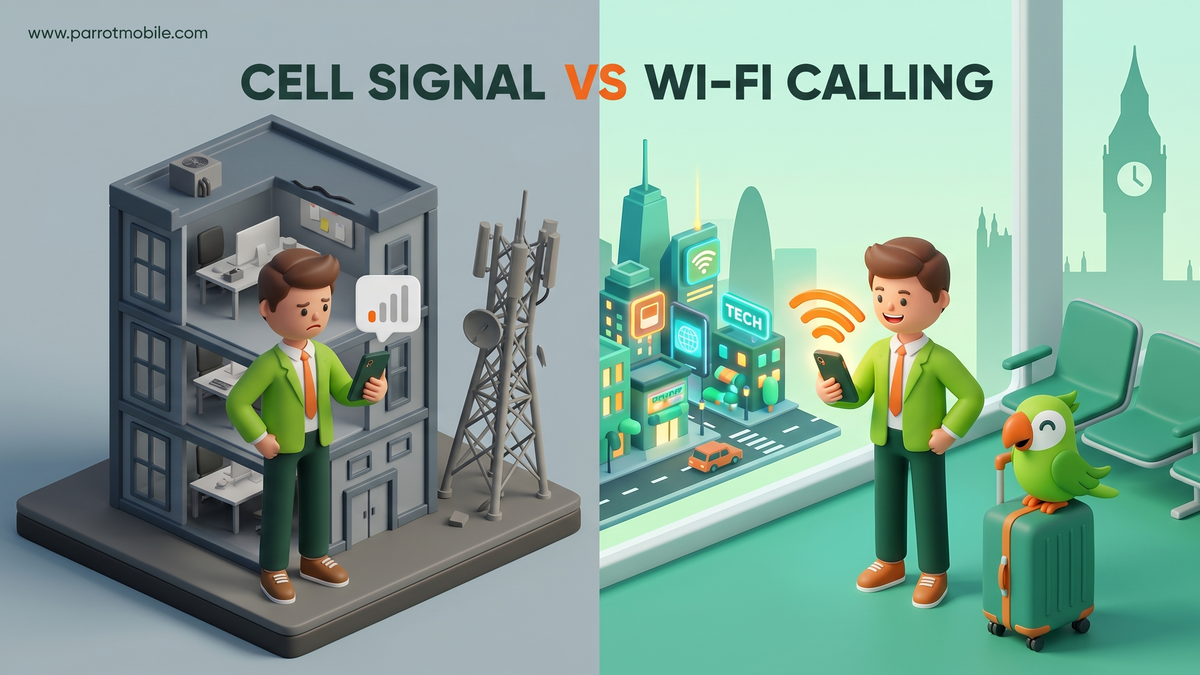
Here's a feature that is already sitting inside your smartphone, costs absolutely nothing extra to use, and quietly solves two of the most annoying problems in the mobile world: dropping calls in your house and paying exorbitant fees while traveling abroad.
It is called Wi-Fi Calling, and once you understand how it works and turn it on, you will wonder why it isn't enabled by default on every device out of the box.
Whether you live in an apartment with concrete walls that block cellular signals, or you're planning a trip to Europe and dreading the roaming charges, Wi-Fi calling is your secret weapon. Let's break down exactly what this technology is, why it's so useful, and how you can switch it on today.
What exactly is Wi-Fi calling?
Normally, when you place a phone call or send a standard SMS text message, the data travels through the air to the nearest cellular network tower. If you are far away from a tower, or if there are mountains, thick walls, or metallic building materials in the way, your signal drops, your voice gets choppy, and your texts fail to send.
Wi-Fi calling changes the route. Instead of searching for a cell tower, it routes your standard voice calls and text messages over a local Wi-Fi internet connection.
Under the hood, this relies on a technology called VoWiFi (Voice over Wi-Fi). But to the person you are calling, absolutely nothing looks different. They see your normal phone number on their caller ID, your voice sounds exactly the same (often even clearer!), and they don't need any special apps to answer. The only change is the invisible path your call takes to reach the network: the internet instead of a cell tower.
Wi-Fi Calling vs. WhatsApp, FaceTime, and Skype
You might be thinking, "Don't apps like FaceTime, Skype, and WhatsApp already do this?" Yes and no. While those apps also use the internet to make calls, they are closed ecosystems. With WhatsApp, both people need to have the WhatsApp app installed. With FaceTime, both people usually need Apple devices.
Native Wi-Fi calling is different because it uses your actual phone number and the phone's native dialer.
| Feature | Native Wi-Fi Calling | App-Based Calling (WhatsApp/FaceTime) |
|---|---|---|
| Phone Number Used | Your standard mobile number. | Varies; often requires an app account. |
| App Requirement | None. Uses your phone's built-in dialer. | Both parties must have the same app installed. |
| Who You Can Call | Anyone. Landlines, mobile phones, businesses. | Only other people who use the app. |
| Receiving Calls | Anyone dialing your normal number rings your phone. | Only app notifications ring your phone. |
| Setup | Toggle a switch in phone settings once. | Download app, create account, add friends. |
The Two Big Superpowers of Wi-Fi Calling
Why should you bother turning this on? Because it provides two massive, life-improving benefits.
1. It fixes the "Dead Zone" problem at home or work
Do you live in a basement apartment? Is your office located in a giant steel-and-glass skyscraper? Do you get exactly one bar of signal in your bedroom but zero in your kitchen?
Cellular signals are notoriously bad at penetrating thick building materials. But if you have a Wi-Fi router in your home or office, you instantly have crystal-clear voice coverage. With Wi-Fi calling enabled, your phone stops desperately hunting for a cell tower and simply rides your high-speed home internet. No more running to the window or stepping out onto the porch just to hear the person on the other end of the line.
2. It is the ultimate international travel hack
This is the feature that frequent flyers absolutely love. When you travel internationally, connecting to a foreign cellular tower usually triggers expensive daily roaming passes or steep per-minute charges.
But if you put your phone in airplane mode, turn Wi-Fi back on, and connect to your hotel, cafe, or airport Wi-Fi, something magical happens. Your carrier treats your phone as if it is physically sitting back in the United States.
Traveling tip: When connected to Wi-Fi abroad, calls and texts back to US numbers work at your normal domestic rates (which usually means they are completely free and unlimited). It is one of the easiest ways to dodge roaming costs while staying in touch with family, calling your bank, or checking your voicemails.
How to turn on Wi-Fi calling (Step-by-Step)
Setting this up requires two quick steps: enabling it with your carrier (which includes a vital safety step) and flipping the switch on your phone.
The one step people skip: Your E911 Emergency Address
Before any carrier will allow Wi-Fi calling to activate, you must provide an emergency (E911) address.
Why is this required? If you dial 911 over a standard cellular network, emergency responders can triangulate your location using the cell towers. But if you dial 911 over Wi-Fi, the network has no idea where that internet connection actually is in the physical world.
To solve this, carriers require you to register a physical address-usually your home address. If you call 911 over Wi-Fi and cannot speak, dispatchers will send emergency services to that registered address. You typically set this up once in your carrier's app or website. Do not skip this; it is required by law and is there for your safety.
Setup on an iPhone
- Connect your iPhone to a Wi-Fi network.
- Open the Settings app.
- Tap Cellular (or Mobile Data depending on your region).
- Tap Wi-Fi Calling.
- Toggle Wi-Fi Calling on This iPhone to the ON position.
- A prompt will appear asking you to confirm or enter your emergency E911 address. Follow the prompts to save it.
Setup on an Android Phone
(Note: Menus can vary slightly depending on if you use a Samsung, Google Pixel, or Motorola, but the path is generally the same).
- Connect your phone to a Wi-Fi network.
- Open the Settings app.
- Tap Connections (or Network & internet).
- Tap Wi-Fi Calling (sometimes found under "Calls" or "Mobile Network").
- Switch the toggle to the ON position.
- Enter or confirm your emergency E911 address when prompted.
You will know it is working when you look at the top corner of your screen. Instead of just seeing your carrier's name, you will often see "Wi-Fi" added next to it (e.g., "Parrot Wi-Fi").
People Also Ask (FAQs)
Wi-Fi calling sounds great, but it usually brings up a few technical questions. Here are the answers to the most common queries.
Does Wi-Fi calling use my internet data? How much?
Yes, it uses the data from the Wi-Fi network you are connected to. However, voice calls are incredibly small files. A one-hour voice call uses roughly 15 to 20 Megabytes (MB) of data. For context, watching a single high-definition YouTube video for 10 minutes uses far more data than an entire month of Wi-Fi phone calls. It will barely make a dent in your home internet cap.
Can I send green SMS text messages over Wi-Fi?
Yes! One of the best parts of native Wi-Fi calling is that standard SMS (green bubble) and MMS text messages will route over the Wi-Fi connection too. This means if you have zero cell service, you can still receive bank verification codes, airline alerts, and group chats from your Android friends.
Does Wi-Fi calling cost extra?
No. Almost all major US carriers include Wi-Fi calling for free as part of your standard monthly plan. The minutes you spend talking over Wi-Fi simply draw from your normal voice allowance (which, for most modern plans, is unlimited anyway).
What happens if my Wi-Fi connection drops while I am on a call?
This depends on your phone and your coverage. If you are on a Wi-Fi call and you walk out your front door out of router range, modern phones support "handoff." If there is a cellular tower nearby, the phone will seamlessly hand the call over to the cell network without dropping. However, if you live in a total dead zone and walk out of Wi-Fi range, the call will drop because there is no backup network to catch it.
Does Wi-Fi calling work on airplanes?
Yes! If you purchase the in-flight Wi-Fi package on a commercial airliner, you can technically use Wi-Fi calling to make voice calls from 30,000 feet. However, almost all airlines strictly prohibit voice or video calls in the cabin because it is incredibly annoying to the passengers trapped next to you. But you can absolutely use the connection to send and receive text messages silently!
Do both people need to be connected to Wi-Fi?
No. Only the person utilizing the Wi-Fi calling feature needs to be on Wi-Fi. The person on the other end of the line can be on a cellular network, a landline, or their own Wi-Fi. They won't know the difference.
Why is Wi-Fi calling blocked in some countries?
If you are traveling internationally, be aware that a small handful of countries (such as China, Saudi Arabia, the UAE, and Cuba) block VoWiFi technology at the national firewall level. In these specific regions, Wi-Fi calling will fail to connect. But in the vast majority of Europe, South America, and Asia, it works flawlessly.
Wi-Fi Calling with Parrot Mobile
At Parrot Mobile, we believe you should be able to use your phone wherever you go, which is why Wi-Fi calling is included free on all of our plans-no special add-ons, no hidden fees, and no upcharges.
After you activate your service with us, simply register your E911 emergency address in your online account dashboard (it takes less than a minute), flip the toggle on your smartphone settings, and you are completely set.
It pairs perfectly with our flexible mobile service: Weak signal at your rural cabin? Solved. Calling home from a beachside cafe in Costa Rica? Totally free. If you travel even occasionally, or if you just have a stubborn dead spot in your kitchen, this feature is one of the most underrated reasons to love your mobile plan.
Check out what else is included with our plans to dig in. Turn Wi-Fi calling on once, forget about it, and let the technology do the heavy lifting. Your future self-especially the one standing in a hotel lobby in another time zone trying to call home-will thank you.